

Install the device and place the antennas
Set up the MergeWiFi Max, mount its external antenna and connect each cable to the right port, and install the outdoor MergeWiFi Mount.
Here's how to set up the MergeWiFi Max router, add its external antenna, and install the outdoor MergeWiFi Mount. Both find the strongest carrier where they're installed and connect on their own, with no SIM card to set up.
Set up the MergeWiFi Max
The Max works between −10 °C and +70 °C (14 °F and 158 °F). Its front panel has a SIM slot, a USB port, four LAN ports (LAN1 to LAN4), a WAN port, a RESET button and the DC power socket.
- Pick a spot within reach of a power outlet.
- Using the external antenna? Install it first, following the next section. Otherwise, use the router's own antennas.
- Plug wired devices, like cameras or a switch, into LAN1 to LAN4. The WAN port can be used as an extra LAN port.
- Plug the 12 V power supply into the DC socket, then into the outlet.
- Give it a few minutes. The router finds the strongest carrier signal available and connects.
Add the external antenna to the Max
The external antenna mounts through a surface and connects to the router with eight labelled cables. You'll need a drill with a 1/2 inch bit.
- Drill a 1/2 inch hole where the antenna will be mounted.
- Take the nut and lock washer off the antenna body.
- Thread all eight cables through the hole.
- From the underside, put the lock washer back on, then the nut. Tighten until the antenna body sits flush with the surface and doesn't spin.
- Remove all of the router's own antennas.
- Connect each labelled cable to its connector on the router, using the table below.
- Leave the GPS cable unconnected.
Stand facing the front of the router, the side with the LAN ports:
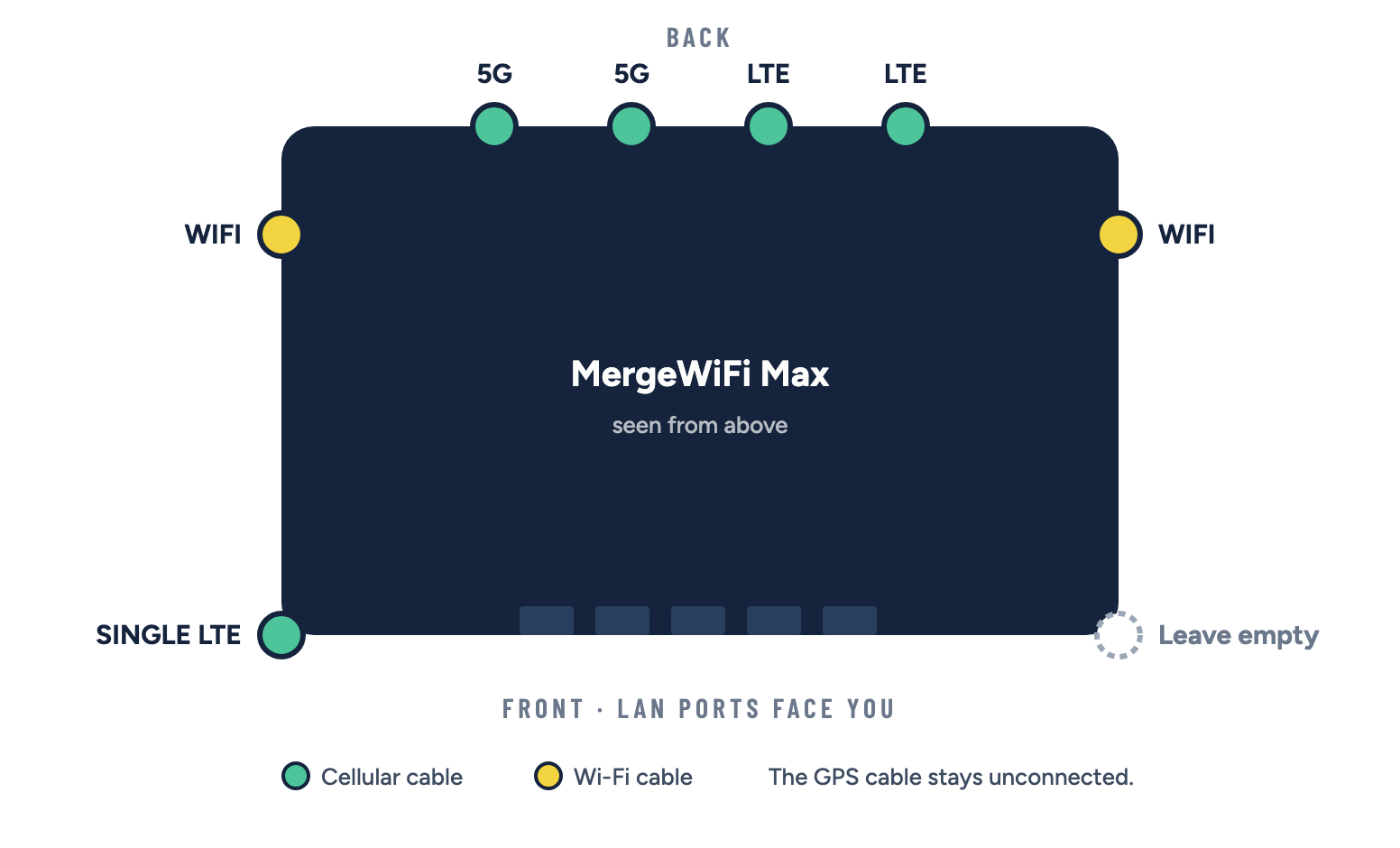
| Connector on the router | Cable to connect |
|---|---|
| Front-left corner | SINGLE LTE |
| Left side, toward the back | WIFI |
| Back, first two from the left | 5G and 5G |
| Back, next two | LTE and LTE |
| Right side, toward the back | WIFI |
| Front-right corner | Nothing. Leave it empty. |
The printable install guide has the connector diagram:
Antenna install guide, PDF
MergeWiFi - Max - Spec Sheet Antenna Install Guide.pdf · 883 KB
Install the MergeWiFi Mount
The Mount is built for outdoors: a sealed, die-cast aluminum housing with rubber gaskets, rated IP66. One Ethernet cable carries both its power and its data (Power over Ethernet).
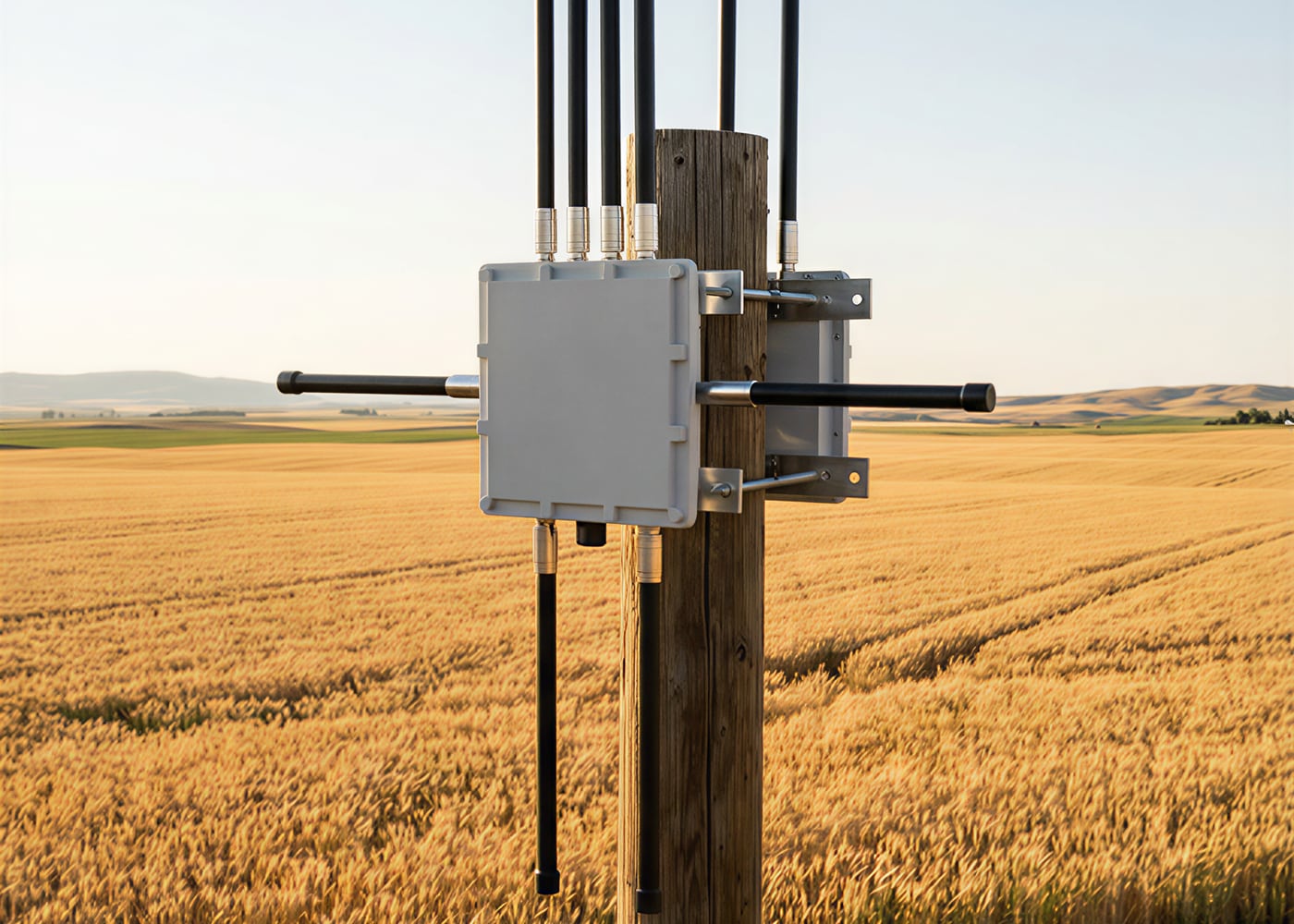
- Mount the router securely where it will be installed.
- Screw an antenna onto each of the Mount's N-type antenna connectors. Its cellular antennas are omnidirectional, so there's nothing to aim.
- Run an Ethernet cable from the PoE power supply to the Mount's PoE port.
- Plug the PoE power supply into a power outlet (100 to 240 V AC).
- Give it a few minutes. At power-on, the Mount finds the carrier with the strongest signal and connects on its own.
The Mount's lights show power, 4G/5G status, and the 2.4G and 5.8G Wi-Fi bands, so you can see it's working at a glance.
Check the connection
- Join the router's Wi-Fi from a phone or laptop, or plug a device into a LAN port, and open a website.
- If you manage the device in the MergeWiFi partner portal, open its page and check that it shows Reachable.
- Run a Network Scan from the device's page to see which carriers it can hear at this spot and how strong each one is. The device is offline for about two minutes while it scans.
- Run a Speed Test to see the download and upload speeds you're getting.
Related: MergeWiFi Max (4G and 5G) · MergeWiFi Mount · Customer quick-start card